
Introduction
Laptops often come equipped with limited graphics capabilities, which can restrict their potential for gaming or other graphically intensive tasks. A GPU adapter for laptops is an excellent solution, empowering your laptop with performance similar to a high-end desktop. This comprehensive guide covers everything you need to know about GPU adapters, including their advantages, selection tips, and troubleshooting, ensuring you get the most out of your investment.
What is a GPU Adapter?
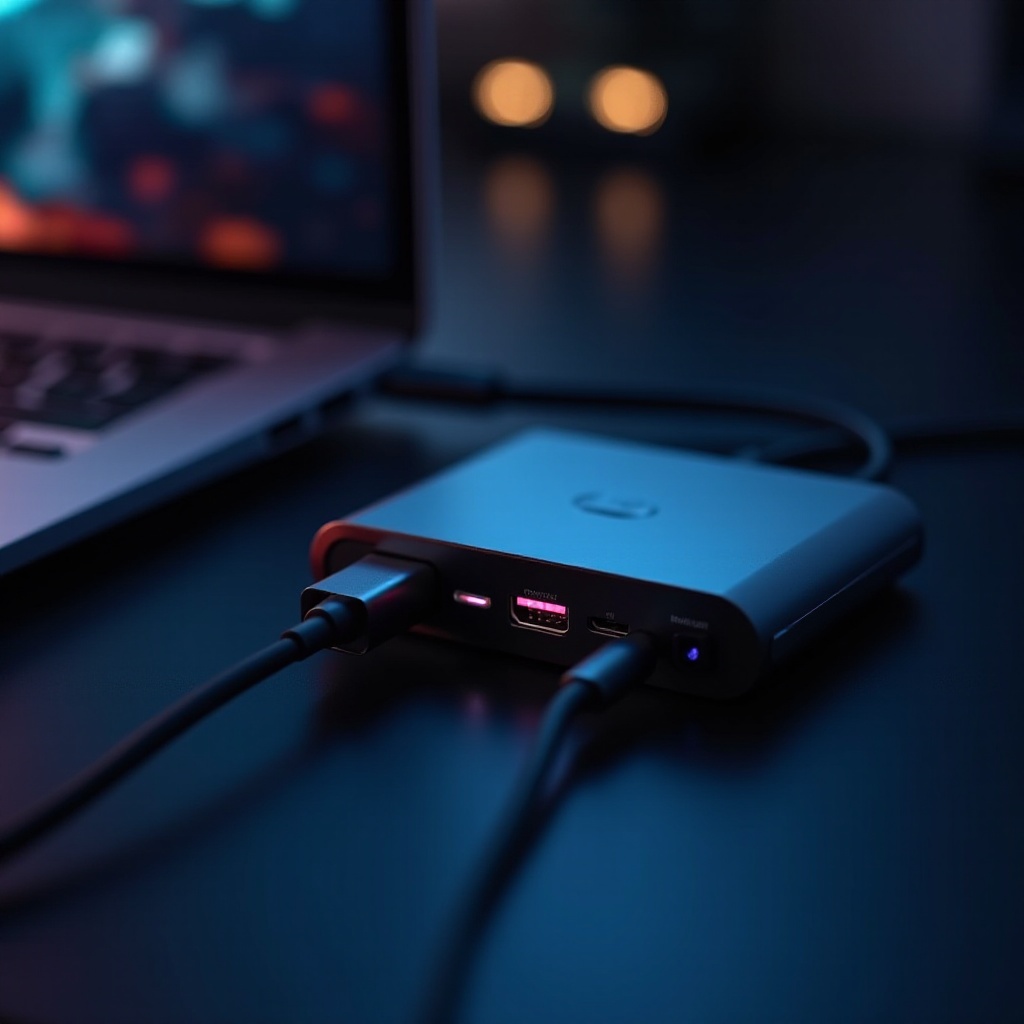
A GPU adapter is a device that connects an external graphics card to your laptop, effectively enhancing its graphical processing power. This setup includes components like a power supply, an enclosure for the GPU, and a connection interface, often a Thunderbolt 3 or USB-C port. By integrating a GPU adapter, laptops gain the power to run demanding applications and games seamlessly.
Benefits of Using a GPU Adapter with Your Laptop
Utilizing a GPU adapter brings several notable advantages:
- Enhanced Gaming Performance: Enjoy playing the latest games at higher settings with smoother frame rates.
- Improved Productivity for Professionals: Reduce rendering times and increase efficiency in graphic design, video editing, and 3D modeling tasks.
- Longevity for Older Laptops: Give older models a new lease of life by updating their graphical capabilities without entirely replacing the device.
Understanding these benefits sets the stage for selecting the ideal GPU adapter tailored to your laptop’s needs.
Choosing the Right GPU Adapter for Your Laptop
Selecting the appropriate GPU adapter involves considering various factors to ensure compatibility and performance:
- Compatibility Considerations: Ensure your laptop has the correct ports, such as Thunderbolt 3, for connecting the adapter. Verify power supply compatibility to avoid any operational issues.
- Top Brands and Models: Consider reputable brands like Razer Core, ASUS ROG XG Station, and Sonnet eGFX for reliable performance. Research thoroughly and compare specifications and user reviews to make an informed decision.
- Balancing Budget with Performance: It’s essential to balance cost and capabilities. While high-end models offer superior performance, there are budget-friendly alternatives that still significantly enhance your laptop’s graphics.
Once you’ve chosen your GPU adapter, the next step is to install and configure it correctly.
How to Install a GPU Adapter: A Step-by-Step Guide
Proper installation is crucial to fully benefit from your GPU adapter. Here’s how to set it up:
-
Preparation and Required Tools: Assemble your laptop, GPU adapter, cables, and the external GPU itself. Ensure your workspace is clean and static-free to prevent damage to sensitive components.
-
Connecting the Adapter:
- Insert the GPU into the adapter enclosure.
- Connect the adapter securely to your laptop using the appropriate cable.
-
Double-check all connections to ensure they are tight and stable.
-
Installing Drivers and Software:
- Power up the entire setup.
- Install the necessary drivers from the manufacturer’s website or included software to ensure the GPU is recognized by your system.
- Configure the hardware settings through the provided software to optimize performance.
With these steps completed, your laptop should now boast significantly improved graphics performance. However, encountering issues is not uncommon, and troubleshooting may be required.
Troubleshooting Common Issues with GPU Adapters
Despite careful setup, problems may still occur. Here are solutions to common issues:
- Solving Connection Problems: Verify that all cables and ports are properly connected. Sometimes a simple reboot can resolve connectivity issues.
- Addressing Performance Issues: Ensure that all drivers are up-to-date. Adjusting graphics settings can also help alleviate performance hiccups.
- Managing Heat and Power: Ensure adequate ventilation and consider using a cooling pad or additional fans if overheating is an issue.
Understanding these solutions is crucial for maintaining optimal performance. As technology advances, GPU adapters continue to play a pivotal role in laptop performance enhancement.
The Future of GPU Adapters in Laptop Technology
GPU adapters are set to become even more integral as laptops and tablets become primary computing devices. The evolution of technology such as Thunderbolt 4 promises faster data transfers, enhancing adapter efficiency. As the demand for high-performance portable devices grows, adapters will continuously integrate the latest technology to meet user needs.
Conclusion
This guide illustrates how a GPU adapter can profoundly impact your laptop’s performance. From elevating gaming experiences to improving professional productivity and extending the useful life of older models, the potential benefits are substantial. Conduct thorough research, select the right adapter, and enjoy an enhanced computing experience.
Frequently Asked Questions
Can I use any GPU with a laptop adapter?
Most GPU adapters support various models, but check compatibility with your specific adapter and laptop.
Do all laptops support GPU adapters?
Not every laptop can connect to a GPU adapter. Ensure your device has a Thunderbolt 3 port or equivalent for connections.
Are GPU adapters beneficial for non-gamers?
Yes, GPU adapters can aid non-gamers by enhancing performance in graphics-intensive tasks like video editing and design.