
Introduction
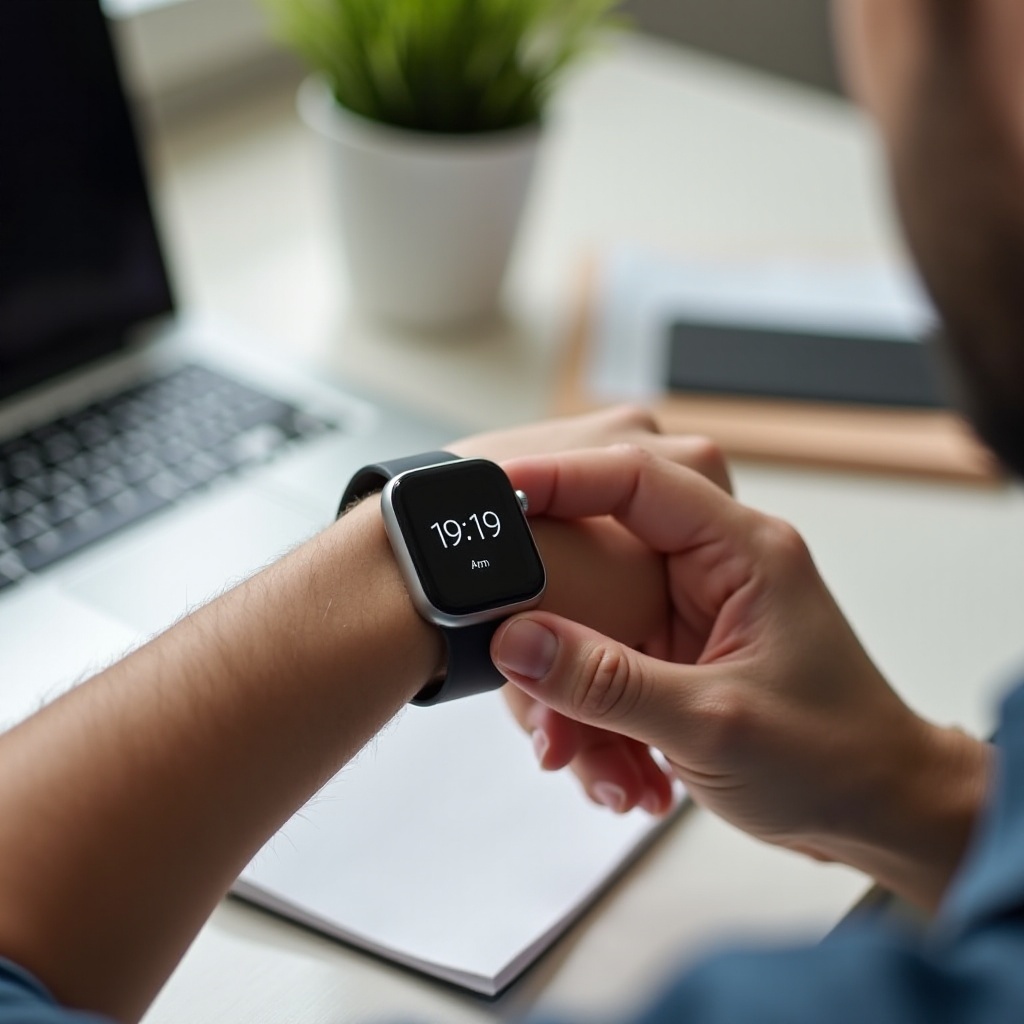
Smartwatches have woven themselves into our daily lives as essential gadgets that keep us organized and connected. However, when your smartwatch displays the incorrect time, it disrupts these benefits and can lead to scheduling mishaps. This comprehensive guide will assist you in adjusting the time settings on your smartwatch, ensuring it reflects the correct time consistently. Whether you own an Apple Watch, Samsung Galaxy Watch, Fitbit, or Garmin device, you can follow this guide to resolve any time-related issues effectively.
Why Correct Time on Your Smartwatch Matters
Accuracy in your smartwatch’s time is crucial for leveraging its full capabilities. An accurate time display ensures you receive timely notifications, schedule alerts, and track various metrics without hitch. This is especially important when setting appointments, monitoring health statistics, or marking events, where precise timekeeping is vital. Discrepancies in time may arise due to software updates, changes in time zones, or manual errors, which can lead to confusion and inefficiency. Ensuring your smartwatch always shows the correct time enhances productivity and maximizes its potential use.
Common Reasons for Incorrect Time Display on Smartwatches
Several factors can lead to incorrect time display on your smartwatch. Understanding these reasons can help you navigate and resolve such issues efficiently.
- Software Updates: Software updates can sometimes reset time settings, resulting in inaccuracies.
- Time Zone Changes: Traveling without updating your watch to the new time zone can cause incorrect time displays.
- Desynchronization: A loss of sync between your watch and your smartphone can lead to time mismatches.
- Manual Setting Errors: Mistakes during manual time adjustments can result in inaccuracies.
- Battery Issues: A low or malfunctioning battery can disrupt accurate timekeeping.
Addressing these common issues will help ensure that your smartwatch remains a reliable digital companion.
Step-by-Step Guide to Changing Time on Popular Smartwatches
Here are precise instructions tailored for different smartwatches, helping you adjust time settings effortlessly:
Apple Watch
- Open the Watch app on your iPhone.
- Navigate to ‘General’, then ‘Date & Time’.
- Disable ‘Set Automatically’.
- Manually adjust the time by tapping the current time and scrolling to set it correctly.
- Check that your location is set correctly to aid in accurate automatic time updates later.
Samsung Galaxy Watch
- Access your apps screen by pressing the home button.
- Go to ‘Settings’, then tap on ‘General’.
- Choose ‘Date and Time’.
- Turn off the ‘Automatic’ setting to adjust the time manually.
- Scroll to select the correct time.
Fitbit Devices
- Launch the Fitbit app on your smartphone.
- Tap your profile picture, then select your device image.
- Scroll to ‘Advanced Settings’.
- Adjust the time zone, or toggle the automatic time zone feature.
Garmin Watches
- Open ‘Settings’ on your Garmin device.
- Select ‘System’, followed by ‘Time’.
- Choose between ‘Automatic’ and ‘Manual’.
- If manual is selected, accurately set the desired time and ensure the time zone is correct.
These steps will help maintain your smartwatch’s time accuracy, thus enhancing its usability across various tasks.
Automatic vs. Manual Time Settings: Pros and Cons
When deciding how to manage time settings on your smartwatch, it’s important to understand the advantages and limitations of both automatic and manual settings.
Automatic Settings:
– Pros: Offers convenience, automatically adjusting time based on GPS and internet connectivity, ideal for frequent travelers.
– Cons: May consume more battery power; incorrect location settings can sometimes cause time discrepancies.
Manual Settings:
– Pros: Provides control over time adjustments, useful in areas with unreliable internet connectivity.
– Cons: Requires active management to ensure accuracy, particularly when traveling across time zones.
Selecting between automatic and manual time settings ultimately depends on your lifestyle and personal preferences.
Troubleshooting Common Time-Related Issues
Despite following the best practices in setting up your smartwatch, time-related issues may still arise. Understanding how to troubleshoot effectively will maintain the accuracy and functionality of your device.
- Sync Issues: Restart both your smartwatch and smartphone, ensuring they are updated to the latest software versions to resolve any sync problems.
- Battery Concerns: Regularly charge your smartwatch and ensure the charger is functioning properly. For older models, consider replacing the battery.
- Software Updates: Keep your smartwatch and its corresponding app up to date to prevent bugs and improve functionalities that might affect time settings.
- Location Services: Make sure location services are enabled for accurate time zone changes.
- Reset: If all else fails, perform a factory reset, but make sure you back up essential data first.
By effectively troubleshooting, you guarantee precise timekeeping for a more reliable and functional smartwatch experience.
Conclusion
Maintaining accurate time on your smartwatch requires regular monitoring and adjustments. Following the step-by-step instructions for brand-specific devices ensures precise settings that enhance functionality. Whether opting for automatic or manual settings, both have merits that suit different needs and preferences. Regular software updates and device synchronization further ensure your smartwatch remains a dependable adjunct in managing daily schedules and alerts, providing peace of mind in daily activities.
Frequently Asked Questions
How can I ensure my smartwatch stays in sync with my phone?
Make sure both devices are connected via Bluetooth, updated with the latest software, and restart them regularly to maintain synchronization.
Will changing time zones affect my smartwatch’s alarms?
Yes, changing time zones will affect alarms, particularly if your smartwatch is set to update time automatically. Check and adjust alarm settings after crossing time zones.
How often should I update my smartwatch software to prevent time issues?
Check for software updates monthly and install them promptly to prevent bugs and improve functionality, including time settings.