
Introduction
Apple Watch offers a range of features designed to elevate your time management skills, including the ability to toggle between standard and military time formats. Military time, also referred to as the 24-hour clock, eliminates AM and PM confusion, providing clarity and precision. By switching your Apple Watch to military time, you can align your scheduling needs with personal or professional demands, enhancing the efficiency of your daily operations.
Activating and using military time on your Apple Watch requires understanding its benefits and the steps necessary to make the change. This guide covers everything you need to know, from setup to customization and addressing common issues.
Understanding the Importance of Military Time
Military time is widely recognized for its precision and lack of ambiguity, running from 00:00 to 23:59. It is a favored format in various professional sectors, including military and emergency services, for its ability to ensure clear communication and reduce errors. Implementing this time format on your Apple Watch can simplify your daily schedule, whether planning meetings or organizing travel.
Military time continues sequentially after 12:00 noon (e.g., 13:00 for 1:00 PM, 14:00 for 2:00 PM), avoiding the need for AM/PM indicators. This system helps streamline timekeeping, particularly if you’re navigating multiple time zones or need precise timing for activities. Now, let’s explore the steps to enable this function on your device.
How to Enable Military Time on Your Apple Watch
Enabling military time on your Apple Watch is a straightforward process. Whether you choose to do it directly on your watch or via the iPhone Watch app, both methods provide an easy transition.
Step-by-Step Setup via Apple Watch
- Press the Digital Crown to access the Home screen.
- Open the ‘Settings’ app on your Apple Watch.
- Scroll and select ‘Clock’.
- Toggle the ’24-Hour Time’ switch to activate military time.
This on-device method allows for quick changes, ensuring your watch display reflects the new format immediately.
Adjustments Using the iPhone Watch App
- Open the Watch app on your iPhone.
- Navigate to ‘My Watch’ at the bottom of the screen.
- Tap ‘Clock’.
- Toggle the ’24-Hour Time’ setting on.
Using the iPhone app allows you to adjust your watch settings conveniently, even if your watch isn’t within reach. Once you’ve made the change, consider customizing your watch face for optimal clarity and usability.
Customizing Your Apple Watch for Military Time
With military time active, enhancing your watch display helps maximize clarity and functionality.
Choosing the Right Watch Face
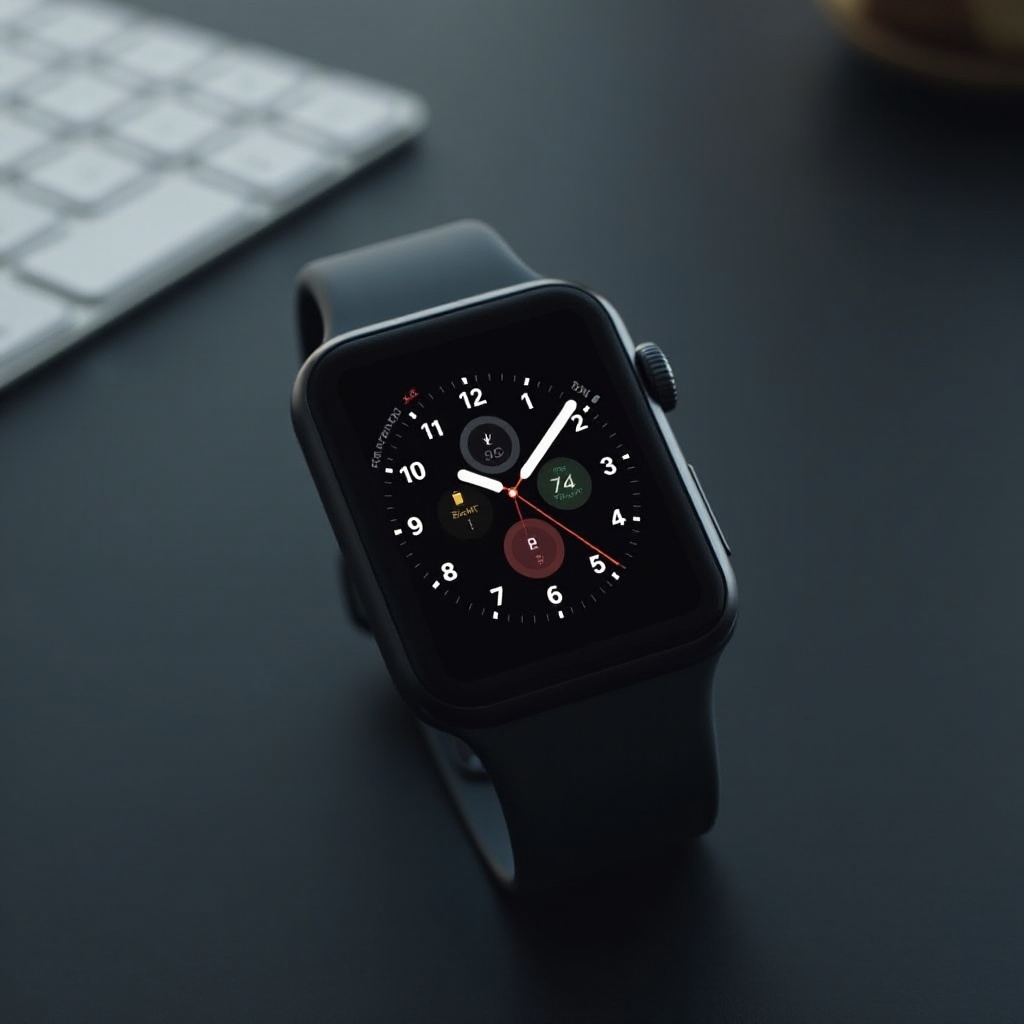
Certain watch faces better support military time, providing a clear and stylish presentation of numerals. For example, the ‘Modular’ face offers large, prominent numbers for easy reading. To change your watch face:
- Firmly press the current watch face.
- Swipe through options and select a face that suits military time.
Enhancing Readability with Complications
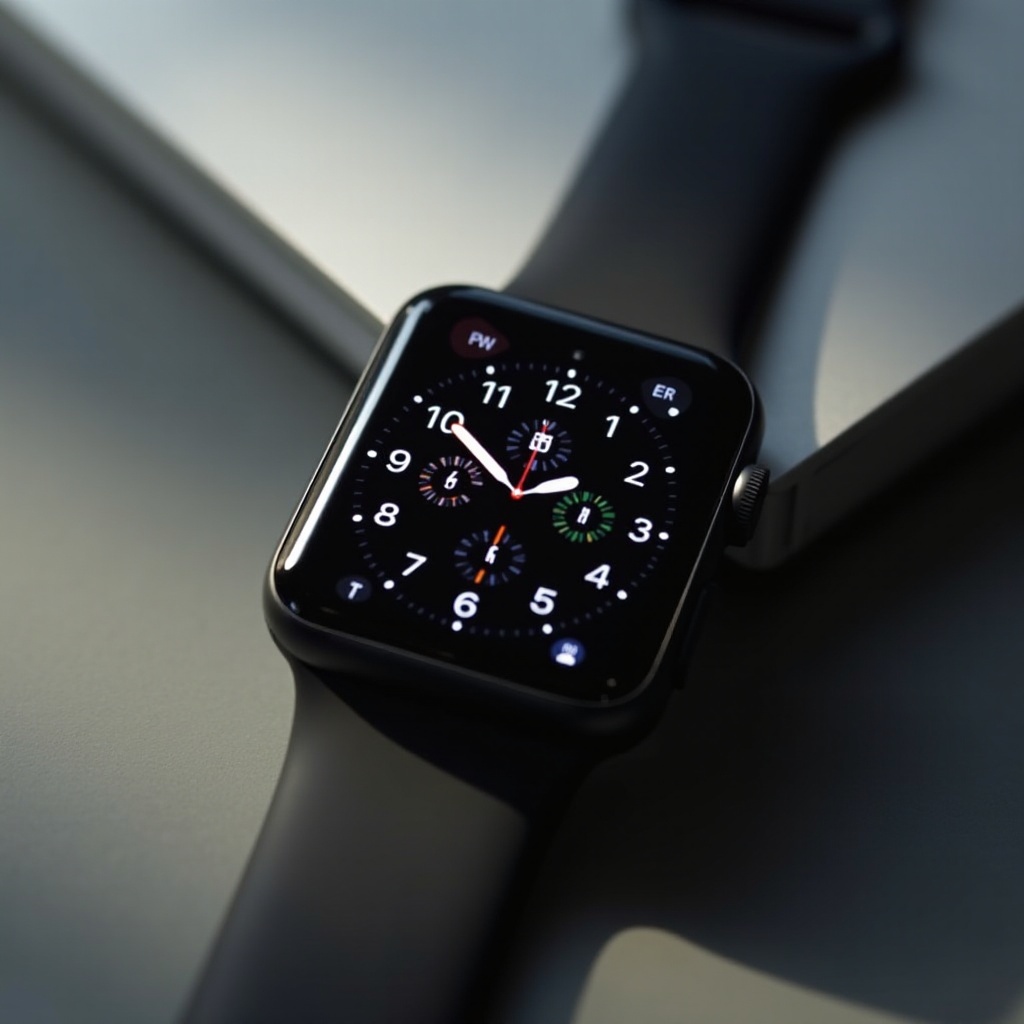
Complications add functionality by displaying additional information directly on your watch face. Adding complications for world clocks, reminders, or calendar events can integrate smoothly with military time, enhancing productivity.
- Enter watch face customization mode by pressing firmly on your watch face.
- Tap ‘Customize’ and swipe to the complications section.
- Select and change complications to suit your needs.
Complications provide a tailored user experience, combining style with improved scheduling capabilities.
Troubleshooting Common Issues with Military Time
Switching to military time may lead to occasional glitches, but simple troubleshooting can often rectify these issues.
Syncing and Display Errors
If there’s a mismatch between your Apple Watch and iPhone settings, verifying that both devices are up to date can resolve most issues. In persistent cases:
- Restart both your Apple Watch and iPhone.
- Unpair and re-pair your devices.
These steps usually restore synchronization and ensure accurate time display.
Software Updates and Their Impact
Software updates occasionally affect settings, including time formats. It’s advisable to check settings post-update to ensure the 24-hour format remains active.
- Access settings through the Watch app after updates to verify configurations.
Keeping devices updated helps ensure a seamless experience without disruptions in setting changes.
Enhancing Productivity with Military Time
Incorporating military time into your Apple Watch use can streamline your scheduling, notably in high-paced or multi-time zone situations. More precise scheduling helps prevent overlaps and mishaps, particularly relevant for professionals with global dealings.
Consider employing productivity apps that naturally integrate with military time, supporting tasks and ensuring synchronicity across devices and platforms. This holistic approach can significantly enhance clarity and focus in managing time-dependent activities.
Conclusion
Setting your Apple Watch to military time not only simplifies time management but also enhances clarity in daily operations. By mastering the setup, customization, and troubleshooting aspects, you can leverage this feature for a more organized and efficient lifestyle. Adopt this 24-hour system to bring more precision and reliability to your routines.
Frequently Asked Questions
How do I switch back to standard time?
To return to standard time, go to ‘Clock’ settings on your Apple Watch or iPhone Watch app and toggle off the ’24-Hour Time’.
Does military time affect notifications differently?
No, switching to military time does not change notification functionality. Alerts will behave as they did before the setting change.
Are there any apps that support military time on the Apple Watch?
Yes, several apps like fitness tracking and world clock apps support military time, offering seamless integration with Apple Watch.